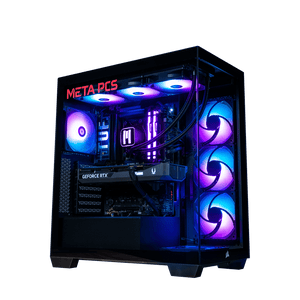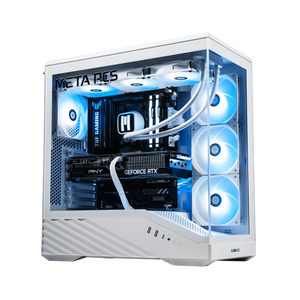
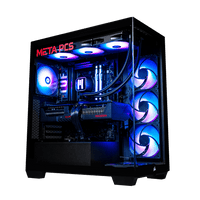





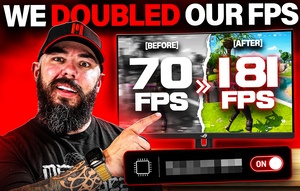
We doubled the frame rate on a budget PC by flipping one BIOS setting. This wasn't a driver update or an overclock, and it wasn't a new GPU. Just one setting most people never touch, on a build we assembled specifically to see how much performance is being left on the table. Fortnite went from 70 fps average to 181. Marvel Rivals doubled. Cyberpunk 2077 at 1080p jumped 75%. The full bench run is in the video below, and the rest of this covers the setting itself, how to enable it, plus four other free tweaks worth doing in the same sitting.
The setting that did the work: Resizable BAR
Resizable BAR (called Smart Access Memory on AMD platforms, same technology under a different name) changes how your CPU talks to your GPU's memory. Without it, the CPU can only reach a small chunk of the graphics card's VRAM at a time. Roughly 256MB per request. It has to queue up multiple trips, wait for each one, and hand data over in pieces. With ReBAR on, the CPU sees the entire VRAM pool at once, and the frame rate climbs as a result.
Here's what that looked like on our test build. Ryzen 7 5700X paired with an Intel Arc B580 12GB, on an AM4 board with ReBAR toggled in BIOS:
- Fortnite: 70 fps average with ReBAR off, 181 with it on. 30 to 105 on 1% lows. More than a 2.5x jump.
- Marvel Rivals on high: 33 to 69 fps average. ReBAR off was unplayable at the 1% lows.
- Cyberpunk 2077 at 1080p: 62 to 109 fps average. 45 to 93 on 1% lows.
- Arc Raiders on high: 50 to 84 fps average. 25 to 74 on 1% lows.
Fortnite was the one that made us re-run the test. 70 to 181 sounded too clean to be real, but we watched the counter with our own eyes across three back-to-back runs. Same numbers each time. The 1% lows tell the deeper story though. Average fps looks smooth on a graph. 1% lows are what you feel mid-match, and they moved from "the card is choking" to "the card is composed" on every title we tested.
Why the gain is huge on some cards and small on others
ReBAR is not a universal fix. It's a big deal for specific hardware and a modest bump for the rest.
On Intel Arc cards it isn't optional. Intel officially states that Resizable BAR must be enabled for Arc GPUs to hit their designed performance, and Tom's Hardware measured up to 24% performance loss on the Arc A770 without it. The B580 in our build behaved the same way, which is exactly why we ran the benchmarks with ReBAR off first, to show what the card looks like when it's set up wrong.
On modern AMD Radeon cards (RX 6000, 7000, and current 9000 series) Smart Access Memory delivers similar-tier gains, usually in the 5 to 15% range in games. AMD's driver enables it on the software side when supported, but the BIOS-level Above 4G Decoding and Resizable BAR toggles still need to be on for it to actually work.
NVIDIA is the outlier. Tom's Hardware tracked around 3 to 10% average gains on modern RTX cards with ReBAR on. Still worth turning on. Not the headline-grabbing swing an Intel Arc or Radeon owner sees, though, and NVIDIA also requires the game itself to have a ReBAR profile in the driver for the setting to apply, so coverage varies by title.
So if you're running any current Intel Arc card or an AMD Radeon 6000, 7000, or 9000-series GPU, this setting is doing more for your rig than a whole new component would, at zero cost.
How to actually enable it
The process is a two-step BIOS tweak, and it takes about three minutes.
First, restart your PC and hit the BIOS key during boot (usually Delete or F2, depending on your motherboard). Once you're in, look for a setting called "Above 4G Decoding." It lives in the Advanced or PCIe section on most boards. Enable it. Save the setting but don't exit yet.
Second, look for "Re-Size BAR Support" or "Resizable BAR" in the same section (on some AMD boards it's labeled "Smart Access Memory" directly). Enable that. Save and exit. Your PC reboots, ReBAR is on, and the next game launch reflects it.
Every META PCs system ships with ReBAR and Above 4G Decoding enabled from the factory, so if you bought a build from us you can skip the BIOS trip entirely. Every rig in our ready-to-ship collection is configured this way out of the box, including the SHADE v3 with its RX 9060 XT 16GB, which is one of the cards that benefits most from having SAM on.
Four other free settings worth doing while you're in there
ReBAR is the headline. The next five minutes buy you a bit more frame rate and a noticeably smoother session.
Update your GPU drivers with the NVIDIA App or AMD Adrenalin. NVIDIA replaced GeForce Experience with the NVIDIA App. If you're still running Experience, uninstall it and grab the new one. Fresh drivers on a new architecture routinely add 5 to 15% in the first six months of a card's life. That's free performance that ships after the card does.
Set your monitor to its actual refresh rate. Windows defaults a lot of high-refresh panels to 60Hz. Right-click the desktop, Display Settings, Advanced Display, and pick the panel's real refresh rate from the dropdown. We see people run 144Hz monitors at 60Hz for months without noticing why the game feels wrong. Also worth checking G-Sync or FreeSync is on if your monitor supports it, since that fixes tearing and pacing without costing fps.
Turn on Windows Game Mode and the High Performance power plan. Game Mode lives in Settings > Gaming and prioritizes system resources for the game in focus. High Performance sits in Control Panel > Power Options. Neither adds huge average fps on its own, but the two together stabilize frame pacing and cut random stutters.
Kill the background weight. Xbox Game Bar overlay, browser tabs with autoplaying video, Discord screen share, any RGB software that talks to hardware in real time. None of these are "boosters" you disable to gain 30 fps. They're just resource drains that let your CPU and GPU spend more cycles on the game.
The "FPS boosters" you can skip
A category of software sells itself as a free FPS boost and mostly does nothing. Two-minute read on what to ignore before you install anything else.
Third-party gaming boosters like Razer Cortex, Wise Game Booster, and similar tools promise to close background processes and reallocate system resources for gaming. In practice the gain is either zero or single-digit percent, and they add their own background overhead. Windows Game Mode does the same job without a third-party install running in your tray.
Registry cleaners and PC "optimizers" don't boost fps. Modern Windows manages its own registry cleanly, and CCleaner-style tools have caused more real problems than they've solved over the years. Not worth installing.
Aggressive overclocking as a first move is another one we'd hold off on. Some free performance is available from a mild GPU or CPU overclock, but for a first-time tweaker the risk-to-reward math is bad compared to a BIOS toggle. ReBAR plus the four settings above deliver more real-world fps with none of the stability headache.
FAQ
Do I need to enable Resizable BAR if I have an NVIDIA card?
Yes, though the gain is smaller. Don't expect the doubled framerates our Intel Arc build saw.
What CPUs and motherboards support Resizable BAR?
Anything from Ryzen 3000 or newer, and Intel 10th gen or newer, on a compatible board. That covers most PCs built since 2020. If your board is older or the BIOS is out of date, updating to the latest BIOS from your motherboard maker's site often adds ReBAR support.
Will enabling Resizable BAR hurt performance in anything?
Rarely. Some creative applications like Blender showed slightly slower render times in our benchmarks with ReBAR on, because the scene data is already in VRAM before rendering starts and the setting adds a small amount of overhead. In games it's either a big gain (Intel Arc, AMD Radeon) or a small gain (NVIDIA). It doesn't hurt games noticeably.
How much FPS does Windows Game Mode actually add?
On its own, not much. Its real job is stabilizing frame pacing and cutting background interruptions during gameplay. Paired with the High Performance power plan and a cleaner background app load, the felt smoothness improvement is bigger than the average-fps chart shows.
Why did Fortnite gain so much more than other games?
Two things stacked. Fortnite runs on Unreal Engine 5, and UE5 hits Intel Arc cards harder without ReBAR because of how it streams assets to VRAM mid-match. On top of that, older AM4 chips like the 5700X gain more from ReBAR than newer platforms do, since more of the CPU-to-GPU handoff overhead gets cleaned up. Both factors compound in the same run. A newer Ryzen 7000 or Ryzen 9000 chip paired with an NVIDIA card would see a much smaller jump on the same game.
Ready to build
Flipping Resizable BAR on doubled the fps on a Ryzen 7 5700X paired with an Intel Arc B580 in our own bench tests. The rest of the settings above stack a few more frames on top of it. Total time investment is under fifteen minutes and the total cost is zero.
Every META PCs ready-to-ship build leaves the shop with ReBAR configured from the factory, stress-tested, and on lifetime US-based support, so buying a build from us skips this trip entirely. Deeper cluster reading if you want it: our Arc B580 vs RX 9060 XT breakdown covers the budget GPU question, the 1440p buying guide covers what to spec for the resolution most gamers should be building for, and the Best Prebuilt Gaming PC guide covers what separates a good prebuilt from a bad one at any tier. Anything not on the ready-to-ship shelf lives in the custom PC builder, and when your new build lands, the first six things to do walk you through the rest of setup before you launch a game.